
Install and Configure Gitea on Ubuntu 24.04

In this tutorial, we'll learn how to install and configure Gitea on Ubuntu 24.04 server.
Introduction
Self-hosting our own Git service gives us control, privacy, and independence from third-party platforms. Gitea is one of the best tools for this. It delivers a smooth Git experience without heavy system requirements, making it ideal for individuals, developers, and teams that want a fast and secure code hosting platform on their own server. In this tutorial, we learn how to install and configure Gitea on Ubuntu 24.04 using a secure and reliable setup.
What is Gitea?
Gitea is a lightweight, open-source, self-hosted Git service used for managing code repositories. It provides features similar to GitHub, GitLab, and Bitbucket, but can run comfortably even on low-resource servers. With Gitea, we can host repositories, manage issues, perform code reviews, collaborate with teams, and integrate CI/CD tools. It is simple to set up, easy to maintain, and designed for speed and flexibility. Gitea supports SSH and HTTPS, multiple databases, built-in user management, and access controls, giving us full control over our development workflow.
Prerequisites
Before we begin, ensure we have the following:
- An Ubuntu 24.04 on dedicated server or KVM VPS.
- Basic Linux Command Line Knowledge.
- A domain name pointing A record to server IP.
Install and Configure Gitea on Ubuntu 24.04
Step 1: Update the Server
sudo apt update && sudo apt -y upgrade
sudo apt -y install wget curl git ufw
Enable firewall:
sudo ufw allow OpenSSH
sudo ufw allow 80,443,3000/tcp
sudo ufw enable
Step 2: Create a System User and Directories for Gitea
sudo adduser --system --group --disabled-login --shell /bin/bash --home /home/git git

sudo mkdir -p /var/lib/gitea/{custom,data,log}
sudo mkdir /usr/local/bin/data
sudo chown -R git:git /var/lib/gitea
sudo chmod -R 750 /var/lib/gitea

sudo mkdir -p /etc/gitea
sudo chown root:git /etc/gitea
sudo chmod 770 /etc/gitea
This ensures Gitea has the correct storage and permissions to run smoothly.
Step 3: Download and Install Gitea
(Always update version number to latest)
VERSION=1.25.1

wget -O /tmp/gitea https://dl.gitea.com/gitea/${VERSION}/gitea-${VERSION}-linux-amd64
sudo install -m 0755 -o root -g root /tmp/gitea /usr/local/bin/gitea
Step 4: Create a Systemd Service for Gitea
sudo tee /etc/systemd/system/gitea.service >/dev/null <<EOF
[Unit]
Description=Gitea
After=network.target

[Service]
Type=simple
User=git
Group=git
WorkingDirectory=/var/lib/gitea/
Environment="USER=git" "HOME=/home/git"
ExecStart=/usr/local/bin/gitea web --config /etc/gitea/app.ini
Restart=always
RestartSec=2s

[Install]
WantedBy=multi-user.target
EOF
Enable and start the service:
sudo systemctl daemon-reload
sudo systemctl enable --now gitea
sudo systemctl status gitea
Gitea now runs on port 3000.
Step 5: Complete Web Installation
Open in browser:
http://SERVER_IP:3000
Fill the setup page using these recommended values:
- Database Settings
- Setting Value
- Database Type SQLite
- Path /var/lib/gitea/data/gitea.db
Gitea automatically creates the SQLite DB – no database config needed.
General Settings
Setting Value
- Repository Root /var/lib/gitea/data/gitea-repositories
- Log Path /var/lib/gitea/log
- Git LFS Root Path /var/lib/gitea/data/lfs
Gitea Base URL https://git.example.com
Create the admin user, then Install Gitea.
Once you click on Install Gitea, it will give you an error.
Navigate to your terminal, edit app.ini file:
sudo nano /etc/gitea/app.ini
Find:
APP_DATA_PATH
Replace the its value with:
APP_DATA_PATH = /var/lib/gitea/data/
If you want to edit any additional values, you can do it here.
Save and exit the file and restart gitea.service
systemctl restart gitea.service
systemctl status gitea.service
Step 6: Install Caddy for HTTPS (Recommended)
Caddy provides automatic SSL certificates with zero effort.
sudo apt -y install debian-keyring debian-archive-keyring apt-transport-https
curl -1sLf 'https://dl.cloudsmith.io/public/caddy/stable/gpg.key' | sudo gpg --dearmor -o /usr/share/keyrings/caddy.gpg
echo "deb [signed-by=/usr/share/keyrings/caddy.gpg] https://dl.cloudsmith.io/public/caddy/stable/deb/ubuntu noble main" | sudo tee /etc/apt/sources.list.d/caddy.list
sudo apt update && sudo apt -y install caddy
Caddy Configuration
Replace git.example.com with your domain:
sudo tee /etc/caddy/Caddyfile >/dev/null <<EOF
git.hnxcloud.com {
    reverse_proxy 127.0.0.1:3000
}
EOF

sudo systemctl reload caddy
Update Gitea URL to HTTPS
Edit config:
sudo nano /etc/gitea/app.ini
Modify:
[server]
ROOT_URL = https://git.example.com/
Restart:
sudo systemctl restart gitea
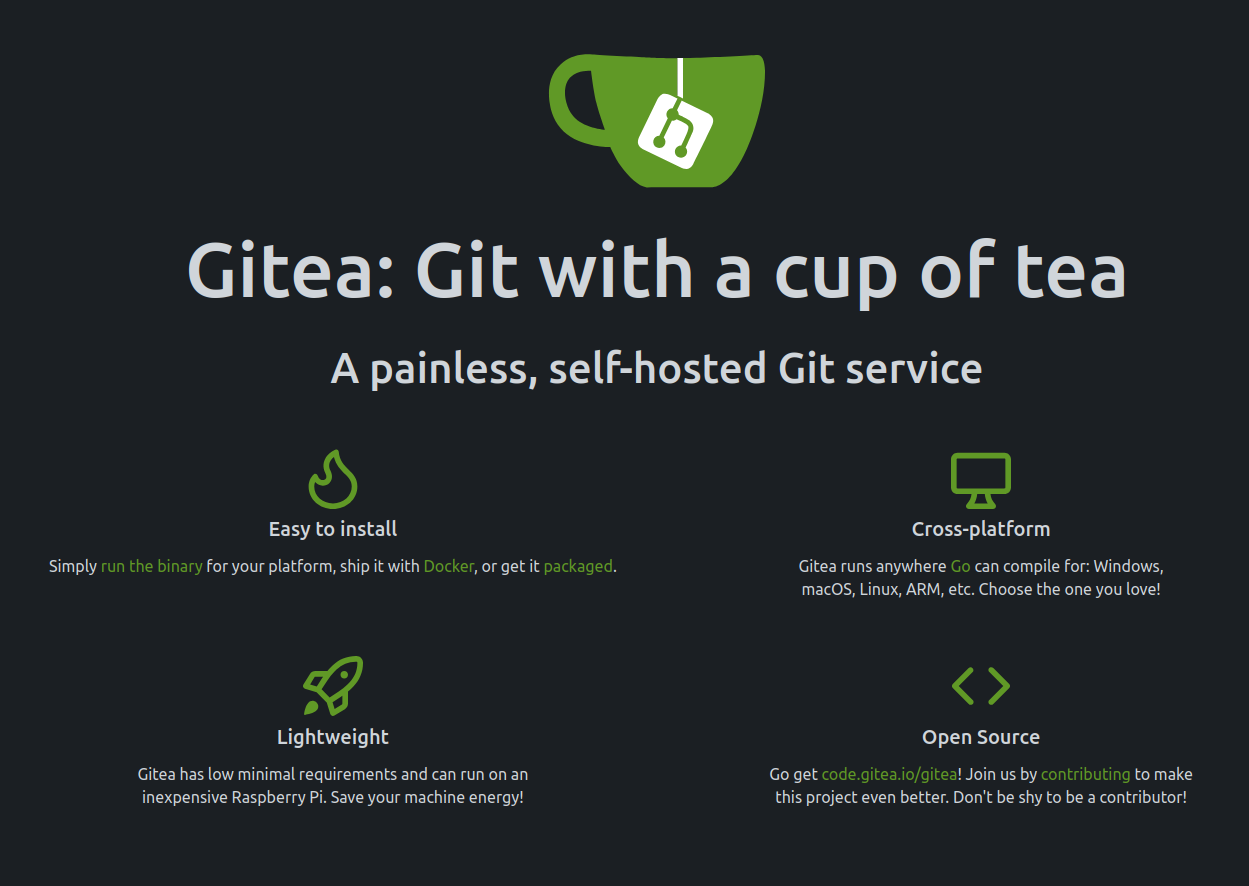
Navigate to your browser and access:
https://git.example.com
Troubleshooting
If you get 500 error in browser or any error, check status of gitea.service
systemctl status gitea.service
Look why it is failing.
You can also login using
su - gitea
Execute following command:
/usr/local/bin/gitea web --config /etc/gitea/app.ini
You will get exact error.
Step 7: Backup & Upgrading Gitea
Backup (important)
Backup two things regularly:
/var/lib/gitea (repositories, data, logs)
/etc/gitea/app.ini (config)
Upgrade Gitea
VERSION=1.25.1
wget -O /tmp/gitea https://dl.gitea.com/gitea/${VERSION}/gitea-${VERSION}-linux-amd64
sudo install -m 0755 -o root -g root /tmp/gitea /usr/local/bin/gitea
sudo systemctl restart gitea
Conclusion
By following this guide, we have successfully set up a secure, self-hosted Gitea server on Ubuntu 24.04 with the recommended configuration. Our environment is now ready for managing repositories, collaborating with teams, and building private or business-level development workflows.
Gitea keeps things efficient, lightweight, and fully in our hands, making it a reliable choice for developers who value privacy, performance, and simplicity. With the server running, the next steps can include enabling email notifications, enhancing security, automating backups, and integrating CI/CD to improve the development process even further.
