
Install and Configure Uptime Kuma on Debian 13

Learn how to install and configure Uptime Kuma on Debian 13 to monitor your website uptime and server health.
Ensuring website uptime is not just good practice it’s essential. Downtime can lead to lost traffic, decreased trust, and even financial loss. That’s where Uptime Kuma, an easy-to-use, self-hosted, open-source monitoring tool, comes into play.
This guide walks through how we can set up Uptime Kuma on Debian, a stable and secure RHEL-based Linux distribution that’s widely used in production environments.
By the end of this tutorial, we’ll have a fully functional uptime monitoring dashboard hosted on our own server no third-party service needed.
What Is Uptime Kuma?
Uptime Kuma is a self-hosted monitoring tool inspired by Uptime Robot. It offers a beautiful web-based interface to track the availability of websites, servers, ports, and APIs. It supports notifications via Telegram, Discord, Slack, email (SMTP), and more. It’s ideal for developers, DevOps teams, and anyone running production websites.
Prerequisites
Before we begin, ensure the following:
- A Debian 13 installed dedicated server or KVM VPS.
- A domain name (optional but recommended for HTTPS setup)
- Basic knowledge of the terminal
How to Install and Set Up Uptime Kuma on Debian 13 for Self-Hosted Website Monitoring (Step-by-Step Guide)
Step 1: Update the System
We always start with a system update to make sure our packages are current.
sudo apt update && sudo apt upgrade -y
Step 2: Install Required Dependencies
Install Git, curl, and build tools needed for Node.js:
sudo apt install git curl -y
Step 3: Install Node.js (LTS)
Uptime Kuma runs on Node.js. We'll install the latest LTS version using NodeSource:
curl -fsSL https://deb.nodesource.com/setup_lts.x | sudo -E bash -
sudo apt install nodejs -y
Verify the installation:
node -v
npm -v
Step 4: Clone the Uptime Kuma Repository
Next, we clone the official repo to our server:
git clone https://github.com/louislam/uptime-kuma.git
cd uptime-kuma
Step 5: Install Dependencies
From the project directory, install all necessary packages:
npm run setup
This will take a few minutes. It installs the backend and frontend dependencies automatically.
Step 6: Install MariaDB on Debian 13
Install MariaDB server
sudo apt install mariadb-server -y
Start and enable service
sudo systemctl enable --now mariadb
Secure MariaDB installation
sudo mysql_secure_installation
Log in to MariaDB
sudo mysql -u root -p
Create database
CREATE DATABASE uptimekuma;
Create user
CREATE USER 'kumauser'@'localhost' IDENTIFIED BY 'StrongPasswordHere';
Grant permissions
GRANT ALL PRIVILEGES ON uptimekuma.* TO 'kumauser'@'localhost';
Apply changes
FLUSH PRIVILEGES;
Exit MariaDB
EXIT;
Step 7: Start Uptime Kuma
Once installed, we can start Uptime Kuma using:
node server/server.js
- This starts the service at http://localhost:3001
- http://<your-server-ip>:3001
Step 8: Run Uptime Kuma as a Systemd Service
To keep Uptime Kuma running in the background and restart on boot, we create a systemd service:
sudo nano /etc/systemd/system/uptime-kuma.service
Paste the following:
[Unit]
Description=Uptime Kuma Monitoring Service
After=network.target

[Service]
Type=simple
WorkingDirectory=/root/uptime-kuma
ExecStart=/usr/bin/node server/server.js
Restart=always
Environment=NODE_ENV=production

[Install]
WantedBy=multi-user.target
Update User and WorkingDirectory paths as per your server setup.
Save and enable the service:
sudo systemctl daemon-reexec
sudo systemctl enable uptime-kuma
sudo systemctl start uptime-kuma
Check status:
sudo systemctl status uptime-kuma
Step 9: Configure Firewall
We need to add HTTP and HTTPS ports in the firewall.
ufw allow 80,443/tcp
ufw reload
Step 10: Secure It with Nginx and HTTPS
If we own a domain and want HTTPS:
Install Nginx:
sudo apt install nginx -y
Create a reverse proxy config:
sudo nano /etc/nginx/sites-available/uptime-kuma
Add:
server {
    listen 80;
    server_name monitor.example.com;

    location / {
        proxy_pass http://localhost:3001;
        proxy_http_version 1.1;
        proxy_set_header Upgrade $http_upgrade;
        proxy_set_header Connection 'upgrade';
        proxy_set_header Host $host;
        proxy_cache_bypass $http_upgrade;
    }
}
Enable the config:
sudo ln -s /etc/nginx/sites-available/uptime-kuma /etc/nginx/sites-enabled/
sudo nginx -t
sudo systemctl reload nginx
Enable HTTPS with Certbot:
sudo apt install certbot python3-certbot-nginx -y
sudo certbot --nginx -d monitor.example.com
Done. Uptime Kuma is now running securely on HTTPS.
Step 11: Setup Monitoring via Web Interface
Now open your browser and go to the Uptime Kuma URL.
https://monitor.example.com/setup-database

Enter database detail that we have created earlier.
Next step:
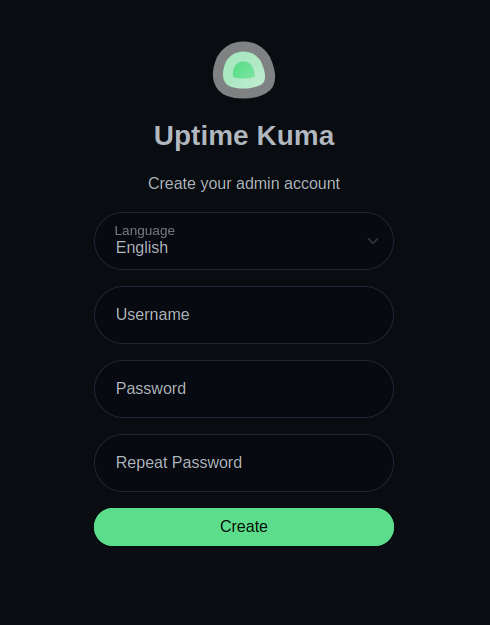
- Create an admin account
- Add monitors (HTTP, TCP, Ping, etc.)
- Set notification channels (e.g., Telegram, Discord, Email)
- Explore dark mode, public status page, and backup settings
Final Words
That’s it,we’ve successfully set up Uptime Kuma on Debain 13 to monitor our websites, APIs, and services with full control. This open-source tool is lightweight, fast, and beautiful. Plus, we don’t rely on third-party platforms for uptime monitoring anymore.
By using a tool like Uptime Kuma, we take back control, improve uptime awareness, and keep our users happy.
Check out our low cost dedicated server.
