
Install Odoo ERP CRM on Rocky Linux 10

In this tutorial, we'll learn how to install Odoo ERP CRM on Rocky Linux 10 server.
Odoo is a versatile open-source ERP and CRM solution that integrates a wide range of business applications—from accounting and inventory management to project planning and customer relationship management—into a single, user-friendly platform. Designed to streamline processes and improve efficiency, Odoo is highly customizable and scalable, making it a popular choice for businesses of all sizes.
Below is a detailed, step-by-step guide to deploy Odoo for Business Management (ERP/CRM) on an Rocky Linux 10 server. This tutorial covers everything from installing required dependencies and PostgreSQL to configuring Odoo and optimizing it for production. Follow along carefully, and feel free to refer back to any step if you need clarification.
Prerequisites:
- A Rocky Linux 10 installed dedicated server or KVM VPS.
- A root user or normal user with administrative privileges.
- A domain name point A record to server's IP
How to Install Odoo ERP CRM on Rocky Linux 10 Server
Step 1: Update the system
We always start clean.
sudo dnf update -y
sudo dnf install -y epel-release
Step 2: Install required system packages
These packages are required for Python libraries and Odoo features.
sudo dnf install -y git gcc gcc-c++ python3 python3-devel python3-pip libxml2 libxml2-devel libxslt libxslt-devel openjpeg2 libjpeg-turbo-devel freetype-devel zlib-devel libpq-devel postgresql-devel openldap-devel cyrus-sasl-devel openssl-devel
Step 3: Install PostgreSQL database
Odoo stores all data in PostgreSQL.
sudo dnf install -y postgresql-server postgresql-contrib
sudo postgresql-setup --initdb
sudo systemctl enable --now postgresql
Create a database user for Odoo:
sudo -u postgres createuser -s odoo
Step 4: Install Odoo
First, create Odoo system user. Running Odoo as a separate user is required for security.
sudo useradd -m -r -s /bin/bash odoo
sudo mkdir /opt/odoo
sudo chown odoo:odoo /opt/odoo
Next, download Odoo source code
Switch to the Odoo user and download the Community edition.
sudo su - odoo
cd /opt/odoo
git clone https://github.com/odoo/odoo.git --depth 1 --branch 19.0
Create Python virtual environment
This keeps Odoo dependencies isolated.
cd /opt/odoo/odoo
python3 -m venv venv
source venv/bin/activate
pip install --upgrade pip
pip install -r requirements.txt
Step 5: Create Odoo configuration file
Exit the odoo user first.
exit
sudo nano /etc/odoo.conf
Add:
[options]
admin_passwd = strong_admin_password
db_user = odoo
addons_path = /opt/odoo/odoo/addons
xmlrpc_port = 8069
logfile = /var/log/odoo.log
Set permissions:
sudo chown odoo:odoo /etc/odoo.conf
sudo chmod 640 /etc/odoo.conf
Step 6: Create system service for Odoo
This allows Odoo to start automatically.
sudo nano /etc/systemd/system/odoo.service
Add:
[Unit]
Description=Odoo ERP
After=network.target postgresql.service

[Service]
Type=simple
User=odoo
ExecStart=/opt/odoo/odoo/venv/bin/python3 /opt/odoo/odoo/odoo-bin -c /etc/odoo.conf

[Install]
WantedBy=multi-user.target
Enable and start Odoo:
sudo systemctl daemon-reload
sudo systemctl enable --now odoo
Step 7: Configure Firewall and SELinux
First, open ports in firewall:
sudo firewall-cmd --add-port=8069/tcp --permanent
sudo firewall-cmd --add-service=http --permanent
sudo firewall-cmd --add-service=https --permanent
sudo firewall-cmd --reload
Configure SELinux (if enabled):
sudo setsebool -P httpd_can_network_connect on
Step 8: Access Odoo
Open the browser:
http://server-ip:8069
Note use strong_admin_password in Master password and password field.
Create a new database and log in.
Step 9: Install Nginx
sudo dnf install -y nginx
sudo systemctl enable --now nginx
Verify it’s running:
systemctl status nginx
Update Odoo configuration for proxy mode
Edit the Odoo config file:
sudo nano /etc/odoo.conf
Add or update these lines:
proxy_mode = True
Restart Odoo:
sudo systemctl restart odoo
This step is mandatory. Skip it and you’ll get broken redirects and login issues later.
Create a new Nginx server block for Odoo:
sudo nano /etc/nginx/conf.d/odoo.conf
Paste this minimal and clean configuration:
server {
    listen 80;
    server_name odoo.example.com;

    proxy_read_timeout 720s;
    proxy_connect_timeout 720s;
    proxy_send_timeout 720s;

    client_max_body_size 200M;

    access_log /var/log/nginx/odoo.access.log;
    error_log /var/log/nginx/odoo.error.log;

    location / {
        proxy_pass http://127.0.0.1:8069;
        proxy_set_header Host $host;
        proxy_set_header X-Real-IP $remote_addr;
        proxy_set_header X-Forwarded-For $proxy_add_x_forwarded_for;
        proxy_set_header X-Forwarded-Proto $scheme;
    }
}
Replace odoo.example.com with the real domain.
Test and reload Nginx
sudo nginx -t
sudo systemctl reload nginx
If nginx -t fails, fix it before moving on. Do not guess.
Step 10. Install SSL
Once DNS is ready, install Certbot:
sudo dnf install -y certbot python3-certbot-nginx
Get SSL certificate:
sudo certbot --nginx -d odoo.example.com
Verify auto-renew:
sudo certbot renew --dry-run
Step 11: Access Odoo via domain
Open the browser:
https://odoo.example.com
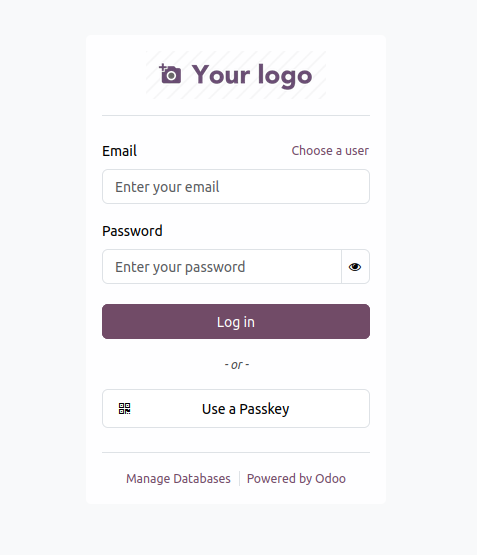
You should now see the Odoo setup page through Nginx.
Step 12: Optimize Odoo for Production
For optimal performance in a production environment, consider the following adjustments:
Worker Configuration:
In the configuration file (/etc/odoo.conf), the workers setting is crucial. A common rule is to allocate roughly 2 worker processes per CPU core, though you must balance this with available memory. For example, if your server has 4 cores and enough RAM, set workers = 8.
Memory Limits:
The settings limit_memory_soft and limit_memory_hard help manage how much memory each worker can use. Monitor your server’s performance and adjust these values to prevent Odoo from consuming too many resources.
Reverse Proxy Setup (Optional):
For improved security and SSL termination, consider placing a reverse proxy like Nginx in front of Odoo. An example Nginx configuration might look like this:
Database Tuning:
Optimize your PostgreSQL settings to suit the expected workload. Tools like pgTune can help adjust parameters such as shared buffers and work memory.
Monitoring and Logging:
Regularly check the Odoo log file at /var/log/odoo/odoo.log and use system monitoring tools to track CPU, memory, and disk I/O. This helps you fine-tune the performance over time.
Final Words
In this tutorial, we've learnt how to install Odoo ERP CRM on Rocky Linux 10 server. This installation provides a robust ERP/CRM system with modules that cover accounting, inventory, project management, and more. By following these detailed steps, you can ensure that Odoo is properly configured, optimized, and ready to handle your business management needs.
Remember that every environment is unique—monitor your system’s performance and adjust configurations as necessary. Happy deploying!
